How to Write on PDF File: The Complete Guide with Examples
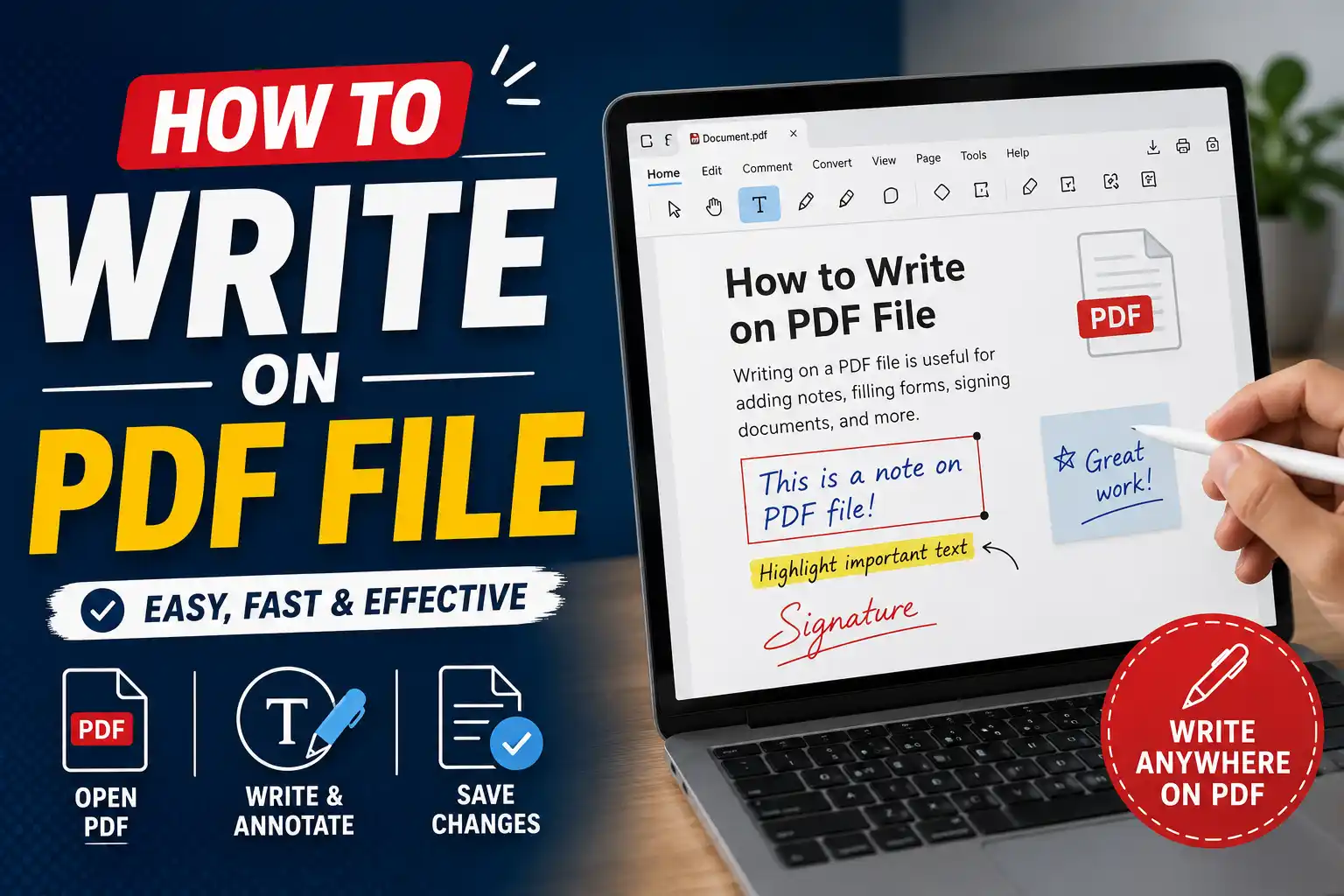
You have a PDF document that needs your input. Maybe it is a contract that requires your signature, a form that needs to be filled out, or a document that needs your comments and annotations. You open the file, ready to write on it , but you realise you cannot just type on a PDF like you would in a word processor.
You are not alone. Writing on a PDF file is one of the most common , and confusing , tasks in the digital world. PDFs are designed to preserve formatting, which makes them great for sharing but challenging to edit. Fortunately, there are many ways to add text, annotations, and signatures to PDF documents.
This guide will teach you everything you need to know about how to write on a PDF file. We will cover the different methods, the best tools for the job, and the common mistakes to avoid. By the end, you will be able to add text, fill forms, and annotate PDFs with confidence.
PDF Writing at a Glance
1 What Does It Mean to Write on a PDF?
Writing on a PDF refers to the process of adding text, annotations, signatures, or other content to a PDF document. Unlike a word processing document, a PDF is designed to be a final, uneditable format. This means that writing on a PDF usually involves adding content on top of the existing document rather than editing the underlying text.
Common reasons to write on a PDF include:
- Filling out forms , Adding text to form fields
- Adding annotations , Leaving comments, notes, or feedback
- Inserting signatures , Signing contracts or agreements
- Highlighting text , Marking important passages
- Adding sticky notes , Adding comments without changing the original text
Writing on a PDF is a common task in the modern workplace. Whether you are a student, a professional, or someone who just needs to fill out a form, knowing how to write on a PDF is an essential skill.
Preserves Formatting
PDFs maintain their layout across devices, making them ideal for sharing documents that should look the same to everyone.
Versatile Use Cases
From signing contracts to reviewing student papers, writing on PDFs is used in countless professional and personal contexts.
Digital Efficiency
Writing on PDFs digitally eliminates the need to print, sign, and scan documents, saving time and resources.
Security and Compliance
PDFs can be encrypted and password-protected, making them secure for sensitive documents that still require input.
2 The Fundamentals of Writing on a PDF
Before you start writing on a PDF, you need to understand the core principles that guide effective PDF editing.
Choose the Right Tool for the Job
Not all PDF editors are created equal. Some are designed for simple annotations, while others offer advanced editing capabilities. Choose a tool that matches your needs. For simple tasks like filling out a form or adding a signature, a free tool like Adobe Acrobat Reader or a browser-based tool may be sufficient. For more complex editing, you may need a premium tool.
Always Save a Copy
Before you make any changes to a PDF, save a backup copy. This protects you from accidentally overwriting the original document. If you make a mistake, you can always go back to the original version.
Understand Your Rights
Some PDFs are restricted and may not allow editing or annotation. If a PDF is password-protected or has editing restrictions, you may need the password or special permission to write on it. Always check the document's permissions before attempting to edit.
The Golden Rule of PDF Editing
The golden rule of writing on PDFs is simple: always save a copy before editing. This protects the original document and gives you a safety net in case something goes wrong. It is a small habit that can save you from a lot of frustration.
3 Methods to Write on a PDF
There are several methods for writing on a PDF, ranging from simple free tools to advanced professional software. Here is an overview of the most common approaches.
Desktop PDF Readers
Most desktop PDF readers , including Adobe Acrobat Reader (free), Foxit Reader, and Nitro PDF Reader , allow you to add text, annotations, and signatures to PDFs.
Advantages: Free, widely available, supports most basic annotation features.
Best for: Simple annotations, form filling, and adding signatures.
Online PDF Editors
Browser-based tools like Smallpdf, ILovePDF, PDFescape, and Sejda allow you to write on PDFs without installing any software.
Advantages: No installation required, works on any device, often free for basic use.
Best for: Quick edits, filling forms, and occasional use.
Mobile Apps
Mobile apps like Adobe Fill & Sign, Xodo PDF Reader, and PDFelement allow you to write on PDFs from your phone or tablet.
Advantages: Convenient for on-the-go use, often includes signature and form-filling features.
Best for: Signing documents and filling forms while away from your desk.
Professional PDF Editors
Full-featured editors like Adobe Acrobat Pro, Foxit PhantomPDF, and PDFelement Pro offer advanced editing capabilities.
Advantages: Full editing capabilities, can edit existing text, advanced formatting options.
Best for: Complex editing, converting PDFs, and professional use.
4 How to Write on a PDF Using Adobe Acrobat Reader (Free)
Adobe Acrobat Reader is the most widely used PDF reader and includes basic annotation features for free. Here is how to use it.
Step 1: Open the PDF
Open the PDF file in Adobe Acrobat Reader. If you do not have it installed, you can download it for free from Adobe's website.
Step 2: Select the Tool
Click on the "Comment" or "Fill & Sign" option in the toolbar. This will open the annotation tools.
Step 3: Add Text or Annotations
Use the available tools to add your content:
- Add Text: Click the "Add Text" icon and click where you want to place the text.
- Add Signature: Click the "Sign" icon to add a typed, drawn, or uploaded signature.
- Add Comments: Use sticky notes, highlight text, or add other annotations.
Step 4: Save the File
When you are done, save the file to keep your changes.
Adobe Acrobat Reader Key Features
- Fill & Sign: Fill out forms and add signatures
- Add Text: Insert text boxes anywhere on the page
- Highlight: Highlight important text
- Sticky Notes: Add comments without changing the text
- Draw: Freehand drawing with a stylus or mouse
5 How to Write on a PDF Using Online Tools
Online tools are a convenient alternative to desktop software. Here is how to use them.
Using Smallpdf
Smallpdf is one of the most popular online PDF tools. Here is how to write on a PDF with Smallpdf:
- Go to the Smallpdf website and select the "Edit PDF" tool
- Upload your PDF file
- Use the toolbar to add text, shapes, or freehand drawings
- Download the edited PDF
Using ILovePDF
ILovePDF offers a simple interface for editing PDFs:
- Select the "Edit PDF" tool on the ILovePDF website
- Upload your file
- Add text, images, or annotations using the toolbar
- Download your edited PDF
Using PDFescape
PDFescape is a full-featured online PDF editor:
- Go to the PDFescape website and select "Free Online"
- Upload your PDF file
- Use the annotation and editing tools to add your content
- Save and download the edited PDF
Tips for Using Online PDF Editors
- Check the file size limit: Most free online tools have a file size limit (usually 50–100 MB)
- Be mindful of privacy: Avoid uploading sensitive or confidential documents to unknown online tools
- Save a backup: Always keep a copy of your original PDF before uploading
- Clear your browser cache: For security, clear your browser history after uploading sensitive documents
6 How to Write on a PDF for Different Purposes
The way you write on a PDF will vary depending on your purpose. Here are some common scenarios.
Filling Out Forms
When filling out a PDF form, look for fillable fields that allow you to type directly into the document. If there are no fillable fields, use the "Add Text" tool to place text boxes where needed.
Key tip: Use the Tab key to navigate between form fields.
Adding Signatures
Many PDF tools allow you to create and insert signatures. You can type your name, draw it with a mouse or stylus, or upload an image of your signature.
Key tip: For legally binding documents, consider using a digital certificate or a secure e-signature service.
Adding Annotations
Annotations include comments, sticky notes, highlights, and underlines. These are useful for reviewing documents, providing feedback, or marking important passages.
Key tip: Use different annotation types to convey different types of feedback , for example, highlight for important information, sticky notes for comments.
Editing Existing Text
Editing existing text requires a professional PDF editor like Adobe Acrobat Pro or PDFelement. These tools allow you to modify the actual content of the PDF, not just add annotations.
Key tip: Editing existing text can be tricky if the font is not embedded in the PDF. Some tools may substitute fonts, which can change the appearance.
7 Common Mistakes to Avoid
Even experienced users make mistakes when writing on PDFs. Here are the most common errors and how to avoid them.
Not Saving a Backup Copy
Making changes to a PDF without saving a copy of the original. If you make a mistake, you cannot go back.
Fix: Always save a copy of the original PDF before making any changes.
Using the Wrong Tool
Using a free annotation tool when you need to edit existing text, or using a complex editor when you just need to add a signature.
Fix: Choose the right tool for your specific task. Simple tasks need simple tools.
Ignoring Form Fields
Typing over form fields instead of using fillable fields, which can create formatting issues.
Fix: Use the form fields if they exist. If not, add text boxes carefully.
Uploading Sensitive Documents to Unknown Tools
Uploading confidential PDFs to free online tools that may not be secure.
Fix: Use reputable tools with clear privacy policies, or use offline software for sensitive documents.
Not Checking the Final Document
Not reviewing the PDF after editing to ensure that everything looks correct and the formatting is intact.
Fix: Always review the final document before saving and sharing.
Forgetting to Save Changes
Making changes and closing the PDF without saving. This is more common than you might think.
Fix: Always save your changes before closing the document.
8 How to Choose the Right PDF Writing Tool
Choosing the right tool for writing on PDFs depends on your specific needs. Here is a guide to help you decide.
For Occasional Users
Recommended: Adobe Acrobat Reader (free) or a simple online editor like Smallpdf.
Why: These tools cover the basics , adding text, filling forms, and adding signatures , without costing anything or requiring installation.
For Business Users
Recommended: Adobe Acrobat Pro, Foxit PhantomPDF, or PDFelement Pro.
Why: These tools offer advanced features like editing existing text, converting PDFs, batch processing, and secure e-signatures.
For Students
Recommended: Adobe Acrobat Reader, Xodo (free), or Foxit Reader.
Why: Free tools are usually sufficient for annotating lecture notes, filling out forms, and adding highlights.
For Mobile Users
Recommended: Adobe Fill & Sign, Xodo PDF Reader, or PDFelement for mobile.
Why: These apps are optimised for touch screens and include signature and form-filling features.
Quick Comparison
- Adobe Acrobat Reader: Free, basic annotation, fill & sign, widely used
- Smallpdf: Free online, easy to use, great for quick edits
- PDFescape: Full-featured online editor, free with limitations
- Adobe Acrobat Pro: Professional, full editing, advanced features
- PDFelement: Affordable alternative to Acrobat Pro, full editing
9 How to Revise and Finalise Your PDF
Before you share your edited PDF, take a moment to review and finalise it. Here is a step-by-step process for finalising your document.
Step 1: Review All Changes
Go through the document page by page. Check that all text has been added correctly, all form fields are filled, and all annotations are clear.
Step 2: Check Spelling and Grammar
If you have added text, check for spelling and grammar errors. Most PDF tools do not include spell-check, so you may need to copy text to a word processor for review.
Step 3: Verify Signatures
If you have added a signature, make sure it looks correct and is placed in the right location. If you are using a digital certificate, verify that it is valid.
Step 4: Check Formatting
Ensure that the formatting has not been disrupted. Check that text boxes are aligned and that no content has been cut off.
Step 5: Save and Name the File
Save the edited PDF with a clear file name. Consider using a naming convention that includes the date and version number.
Step 6: Share Securely
If you are sharing the document, consider password-protecting it for security. Use a secure sharing method.
10 Practice Exercises to Improve Your PDF Skills
The best way to get better at writing on PDFs is to practice. Here are some exercises to help you sharpen your skills.
Exercise 1: Fill Out a Form
Find a sample PDF form online (many government websites offer fillable forms). Practice filling it out using Adobe Acrobat Reader or an online tool.
Exercise 2: Add Annotations
Take a PDF document and practice adding different types of annotations: highlights, sticky notes, underlines, and text boxes.
Exercise 3: Create and Add a Signature
Practice creating a signature using different methods: typing, drawing, or uploading an image. Add it to a PDF document.
Exercise 4: Try Different Tools
Write on the same PDF using three different tools (e.g., Adobe Acrobat Reader, Smallpdf, and PDFescape). Compare the experience and results.
Final Thoughts
Writing on a PDF file is an essential skill in the digital age. Whether you are filling out a form, signing a contract, or annotating a document, knowing how to add content to a PDF will save you time and frustration.
Remember that the key to success is choosing the right tool for the job and always saving a backup copy before editing. With the range of free and paid tools available today, there is no reason to struggle with PDF editing.
Keep these principles in mind as you work with PDFs:
- Always save a backup copy. Protect the original document.
- Choose the right tool. Match the tool to your task , simple tasks need simple tools.
- Check your work. Always review the final document before sharing.
- Be mindful of security. Use reputable tools for sensitive documents.
- Practice regularly. The more you use these tools, the more confident you will become.
Writing on PDFs does not have to be difficult. With the right knowledge and tools, you can add text, fill forms, and annotate documents with ease. The skills you develop today will serve you well in your professional and personal life.
Now go write on that PDF with confidence.